


Good Morning,
This week we continue our hands-on AI guide series, by some of the most talented folk writing AI guides on Substack.
I really respect Product people in how they are adopting AI and the quality of their insights and their detailed early adoption notes. I asked Sid Saladi to give AI Supremacy readers an easy to understand guide to Meta’s Muse.
Is Muse a Special Product?
Meta's Muse product was launched on September 8th, 2026 and is one of the most ambitious personal assistants in the world. Meta Muse is 56 days old and Muse Wonder Full is a decent model. Muse hit 10 Million downloads in its first forty days just in the U.S. and Canada.
The Product Channel
Ship and scale products 10x faster with AI-powered playbooks, tools and community.

Minimalistic AI News Refresh
I also want to share some related minimalistic AI news related to our deep dive into Muse today.
A potential competitor of Meta’s Muse is Instinct. Instinct is developing a personal agent that can perform day-to-day tasks autonomously. In late September, did a surprise Series C for $1 Billion quadrupling its valuation to $10 billion driven by this trend of Personal Assistants. Learn about Instinct. It’s still in private access as its invite-only Beta continues.
Grok Bot limits: In a shocking development on November 1st, Elon Must tweeted about Grok Bot here1. What followed were sudden and arbitrary limits and throttling of SpaceXSI’s services, including Grok Bot. The Halloween surprise included weekly usage limits being unexpectedly maxed out, even if they hadn’t been using SpaceX’s agentic AI overnight. Grok Bot has been positioned as a success story and while it’s built by the incredible Cursor team, it’s not clear if SpaceX has the compute capacity. SpaceX had leased considerable compute capacity to Anthropic this year that boosted SpaceX Earnings in Neo Cloud revenue.
New Claude Limits: Anthropic will likely IPO in two weeks, recently has updated Claude Code to block requests aimed at recreating or cloning existing video games and blocking reverse-engineering tasks. Game devs report that the safeguard is overly aggressive. AI generated indie games are flooding platforms like Steam.
M&A Accelerates: AI-connectivity deal of the cycle. Marvell Technology’s $115 billion acquisition of Lumentum Holdings represents one of the largest mega-deals of the AI hardware boom. It’s a global market leader in photonics, optical communications, and industrial laser technologies. It’s a huge deal where Marvell’s will be able to push into optical connectivity for artificial intelligence data centers. Marvell benefits by monetizing the electronic and architectural side of the bandwidth bottleneck that enables them to better compete with Broadcom. Marvel’s stock is up 92% this year, where increasingly it appears like Broadcom and Marvell operate in a functional duopoly.

❄️ IPO Sentiment Bar 🔥
The AI IPO of the decade is nearly upon us.
Anthropic updates S-1 with Key new Details
Meanwhile Anthropic updated its S-1 filing, you can read the updated version here.
The company said it generated $33.24 billion in revenue for the nine months ended Sept. 30, up roughly 1,200% from the same period last year.
It reported a $104 billion net loss during the period, where it had a loss of $25.1 billion over the same stretch in 2025.
Third-quarter revenue increased around 47%, a steep drop from 144% growth in Q2 and 132% in Q1, reaching $17 Billion in revenue with a net loss of $23.29 billion during its third quarter.
In the amended S-1, Anthropic said it has entered into purchase commitments and lease agreements with an aggregate committed spend of about $895.4 billion.
About the Author
Sid is a Product Leader at Enterprise companies. He writes The Product Channel, a newsletter that helps people get their day-to-day done faster with AI, at work and at home. He publishes AI tool 101s, each one tested on his own work, with the prompts to copy.
“An AI tinkerer. I'm obsessed with helping you get good at using AI” -Siddhartha Saladi

To get all-access to Sid’s publication it costs around $15 a month or $99 a year. If guides like this might be useful to you.
Meta’s Muse is a Nascent Personal Assistant
Muse is if anything the first major personal assistant designed to execute real-world tasks autonomously rather than simply responding in a turn-by-turn chat format with a very big budget. Anthropic is testing Duet that I recommend for Small businesses, entrepreneurs, freelancers and business people. Muse’s early momentum is exciting but also daunting. Many retailers, marketplaces, banks and even Amazon have pushed back and blocked it.
However, I should reiterate that Meta also launched Muse for Small Businesses. More specialized version of Muse remain fairly promising. Knowing how to use these personal assistants, getting the most out of them and any tips and ticks are generally worthwhile.
Let’s Go
After writing about the era of personal super-intelligent agents about a month ago, I wanted to know what living with one is actually like. Sid Saladi spent a month finding out. He gave Meta's Muse real jobs, from his food log to a refund Google first refused, and wrote up what worked and where it broke.
The author picks 5 low-hanging fruit tasks and and analyzes the performance. While doing a detailed walk-through guide, recommended rule settings and more.
By Sid Saladi , October 2026
How to Use Meta Muse as Your Personal AI Assistant: 5 Jobs to Hand It, and Where It Breaks
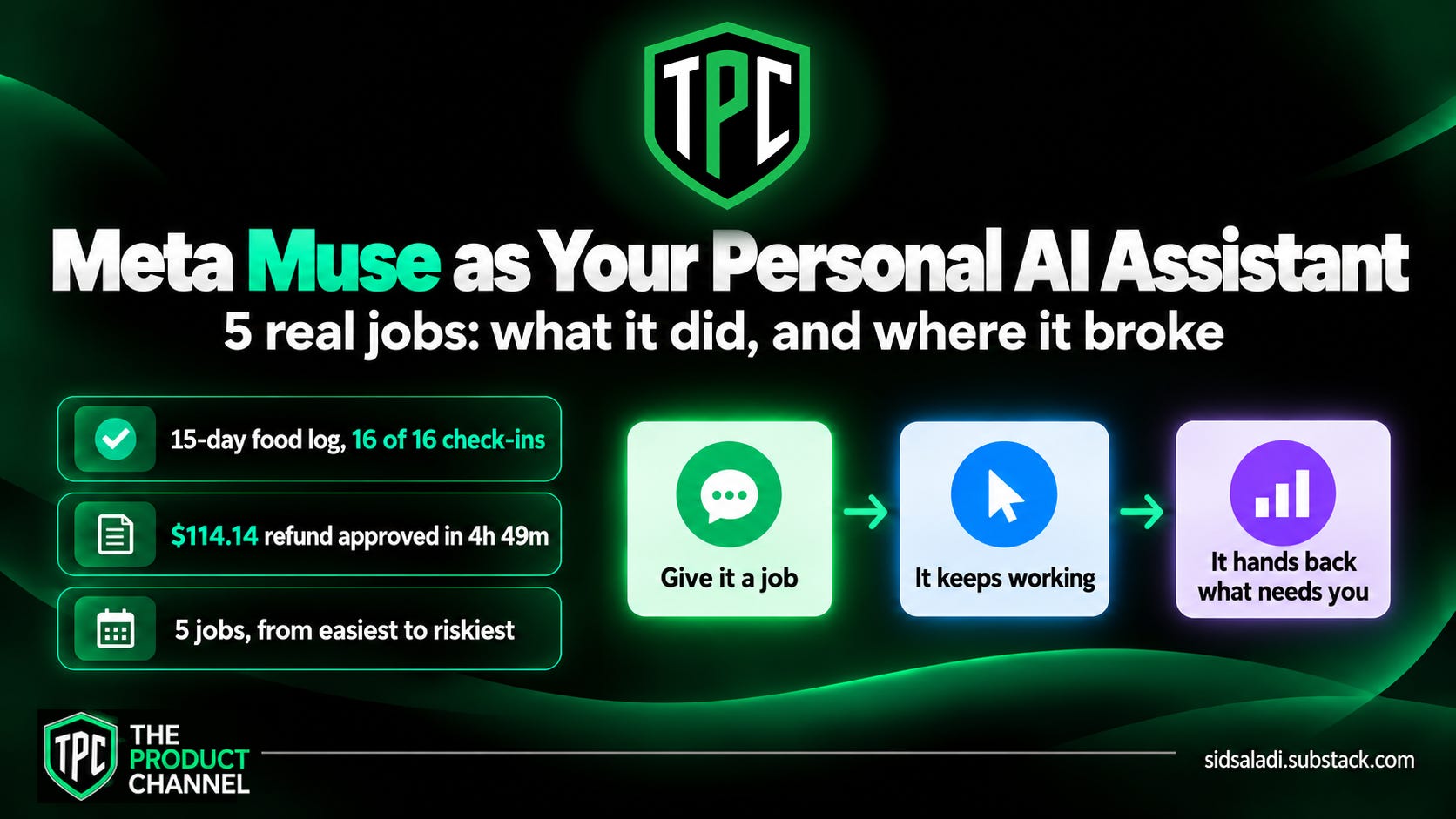
I gave Meta’s new agent real jobs for a month. It won a $114.14 refund Google first refused, ran my food log for 15 days and applied for jobs. Here’s what it did, and where it broke.
At 6:56 p.m., Google turned down my refund. At 7:44 p.m., it approved it. My whole part, start to end, was two approvals, a password and a six-digit code.
A chatbot answers and stops. Muse, Meta’s new personal agent, takes a job and keeps working after you close the app. So, I just judged it on one question: did the job get done, and what did I still have to do myself?
Muse is a simplified version of OpenClaw or Hermes Agent. I think it’s heavily inspired by OpenClaw, but it makes the setup very, very easy for you.
For the past month, I gave Muse real jobs. I asked it to apply for jobs. I asked it to track my calories and remind me when I go over. I also asked it to manage my to-do list and even go ahead and complete tasks, which it did for me.
In this guide, I’ll show you:
The setup, with the permissions that keep you in control
5 jobs to hand Muse, from the most comfortable to the one to hand over last
The prompts to copy
Where each one broke, and the fix
The rules I’d set on day one
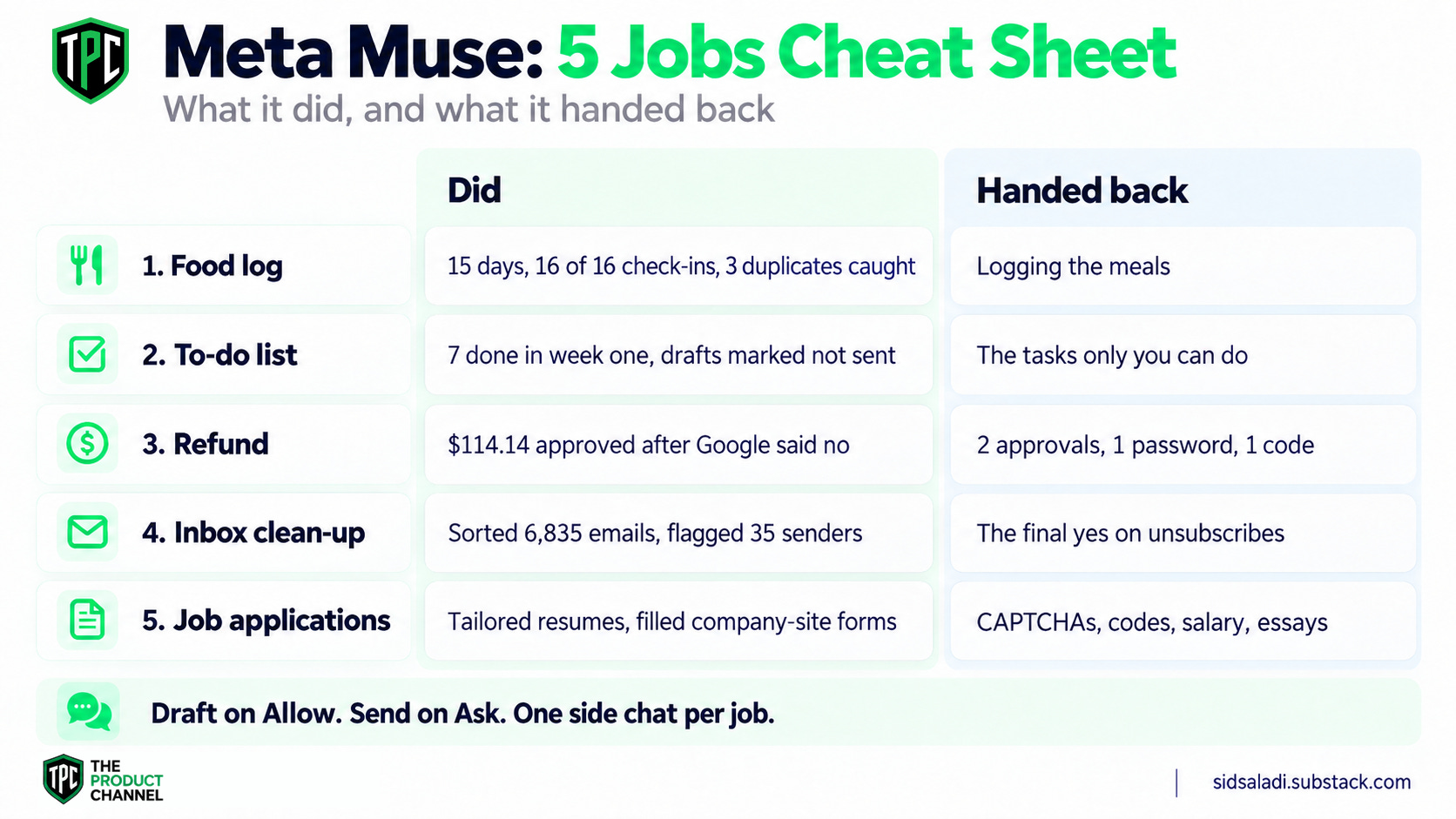
Cheat sheet: the 5 jobs, what Muse did and what it handed back. Made with ChatGPT
Before you start: the setup
Muse is Meta’s personal AI agent. It launched on September 8 in the US and reached Canada on September 18. You can use it on the web at muse.ai, in the iPhone and Android apps, on Mac and iPad, and inside WhatsApp.
The difference from a chatbot is where it works. Each account gets its own computer in Meta’s cloud.
In Meta’s words, from How We Designed Muse: “Muse has its own computer, with a file system and a terminal, so it can write its own code.” It has a full web browser too. Because that computer keeps running, Muse can come back to you the next morning without being asked.
Muse is free with a usage limit that refreshes. The paid plans are Power at $20 a month and Maximum at $100 a month, per Meta’s subscriptions page.
Three settings matter before you give it anything real.
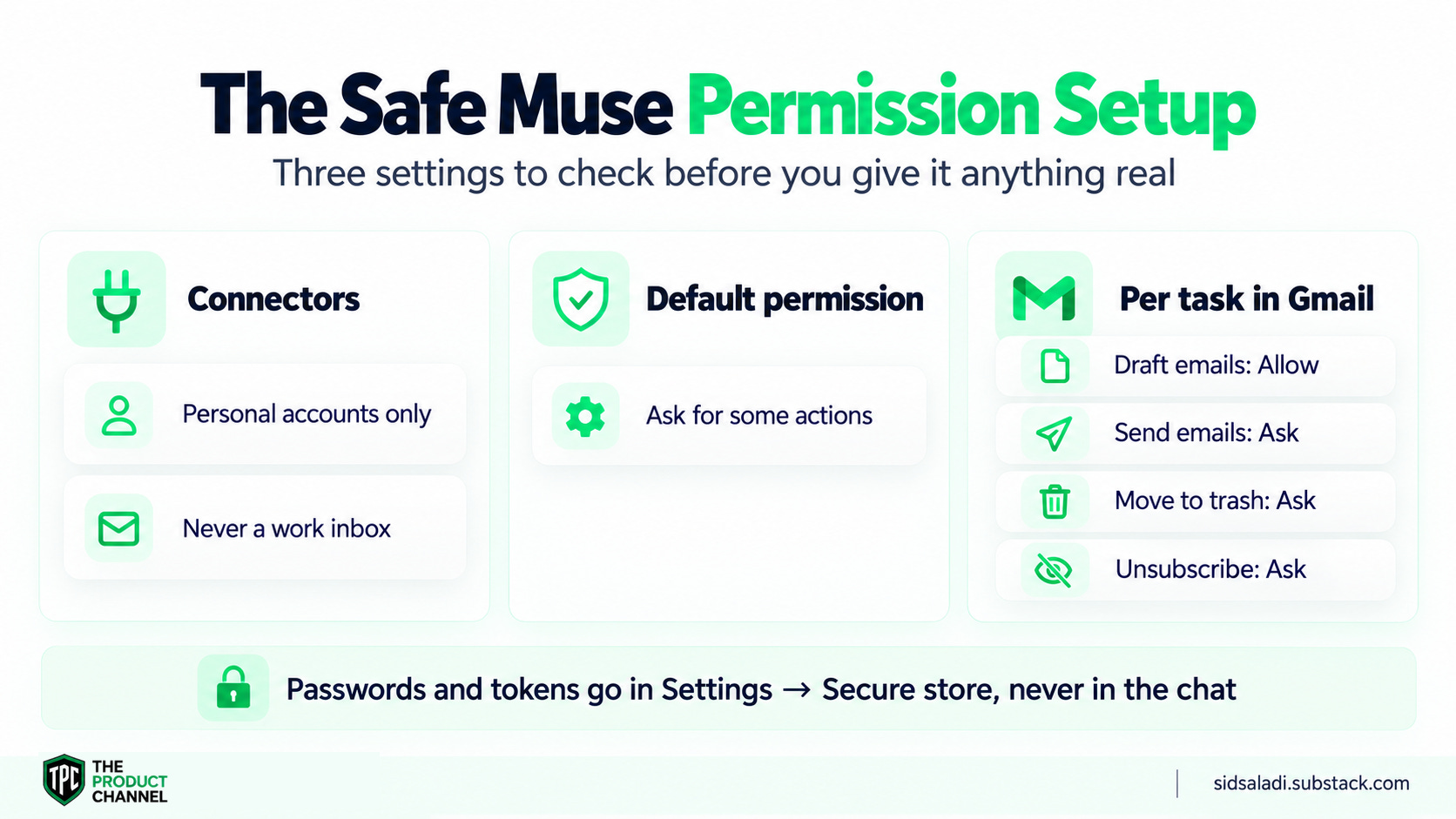
The safe Muse permission setup: personal accounts only, Ask for some actions, Draft on Allow, Send, trash and unsubscribe on Ask.
1. Connect your personal accounts, not your work ones. Settings → Connectors, the accounts Muse can read and act in. I connected my personal Gmail inboxes, Google Calendar and Google Tasks.
Never connect a current employer’s inbox. Meta’s own safety post says today’s setup “does not prevent Meta from accessing data when necessary to support, secure or operate the service.” A work inbox is not yours to hand over.
2. Pick your permission level. Settings → Permissions gives you two choices: “Ask for some actions” or “Always ask.” I stuck to number one, “Ask for some actions.” If you want to test the waters, I would recommend starting with “Always ask” so that you can approve each and every action. As you get more and more comfortable with the actions it’s taking and how accurately it’s taking them, you can move to number one.
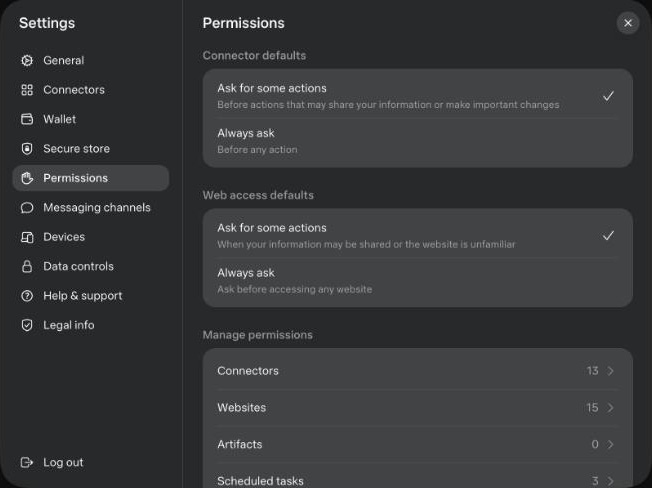
Muse Settings → Permissions: connector and web access defaults set to “Ask for some actions”
3. Check the per-task permissions. Every scheduled task gets its own list of what it can do in Gmail. The safe recipe is to Draft on Allow and Send on Ask.
I’d also put “Move emails to trash” on Ask. Mine was on Allow.
As I said before, this is based on how comfortable you are. If you are not at all comfortable, I would start with “Ask” for everything, and then move more towards “Allow” as you get more comfortable playing with these.
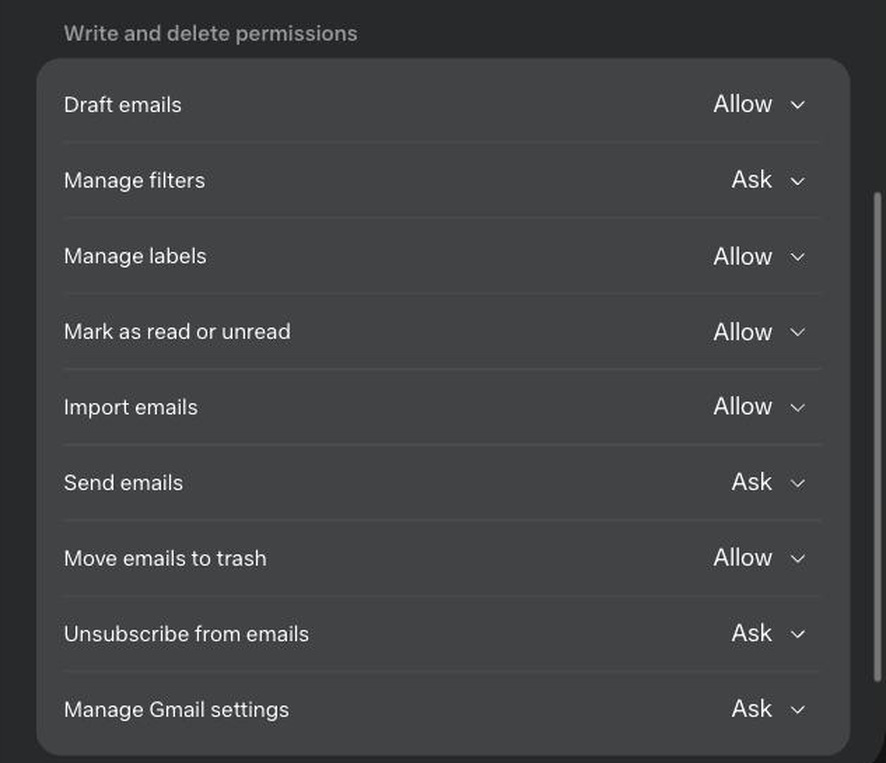
Gmail permissions on one of my scheduled tasks: Draft on Allow, Send and Unsubscribe on Ask, Move to trash still on Allow
One more habit: give each job its own side chat. The main thread is one long conversation, and five jobs in one thread get messy fast. I tried having all the conversation in one single thread, but it soon got too crowded and complicated.
5 jobs to hand Muse…
Use case 1: Replace Cal AI with a photo food log
Cal AI is the viral calorie app that MyFitnessPal announced it had bought in March. Photograph your food, and it will estimate the number of calories. I wanted to see if Muse could do the same job without another subscription.
What I said: I started from one of Muse’s own suggestion cards, “Snap a pic of your meal. I’ll track every calorie.” It asked me two setup questions. After that I just sent photos and one-line notes after meals.
If you want to set this up yourself, start with my setup prompt. It gives Muse one Food Log file, your daily numbers, a morning check-in and an evening line. It also tells Muse to ask about a garbled note instead of guessing, to ask before it logs the same item twice, and to call a partial Apple Health sync partial, not zero.
What happened: I ran it for 15 days, September 13 to 27.
I logged meals on 13 of the 15 days.
It sent all 16 morning check-ins at 8:40 a.m., through September 28, and never missed one. Four of them called out a thin or missing day.
It caught 3 duplicate photos (”already logged, no change”) instead of counting them twice.
When my voice-typed notes came out garbled, it asked what I meant 3 times instead of guessing a food.
It read calories off a package label twice and a weight off a kitchen scale once.
Twice it went back and fixed older days on its own. Once it read a label and saw the pack was bigger than it had assumed. It corrected the two earlier days that pack showed up on.
On day 1 it asked me to confirm every photo. From day 2 it just logged them.
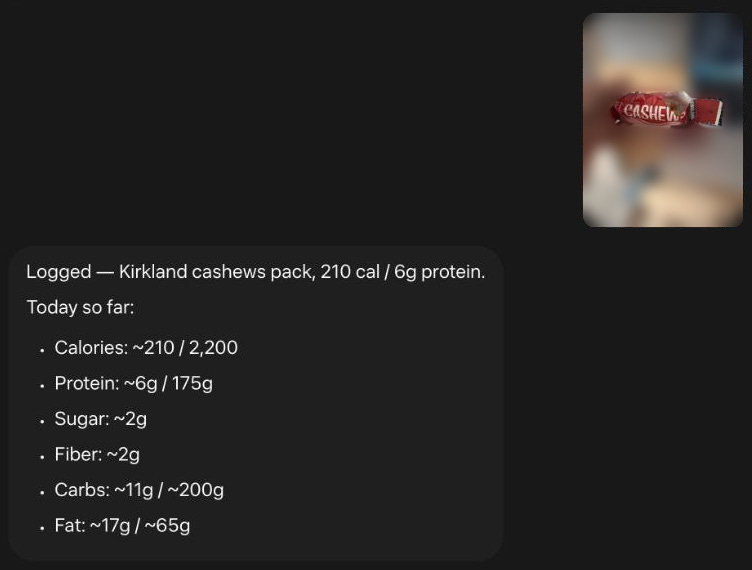
One entry from my Muse food log: I sent just a photo, and it logged the calories and updated the day’s totals. Background blurred.

The food log as a Muse Goal: “Sep 27 check-in ran incomplete (partial Apple Health sync, no meals logged); next check-in tomorrow morning”
Where it breaks:
The log drifted. It kept a spreadsheet, but after two weeks the spreadsheet had 3 rows. The rest of my meals lived in the chat. Fix: name one log file in your first message, and open it on day 2.
Apple Health synced partially on some mornings. To its credit, it said “partial” instead of reporting zero steps.
It can’t make you log. I stopped on day 14. The check-ins kept asking for meals, politely, every morning.
Corrections can take a few rounds. One spoken dessert name got attached to the wrong item, then swapped with the wrong item, then fixed.
On day 2, run my read-back prompt. It lists anything you sent that day that never reached the file, and anything logged twice, then waits for your answers. To fix a row, use my fix prompt, which shows you the before and after of each change. When you’re done with the experiment, say “stop the food log tasks,” then check the Upcoming tab.
I didn’t weigh my plates, so I can’t tell you how accurate the numbers were. No app is precise here. Cal AI’s own FAQ says: “CalAI is about 80% accurate.”
An NIH-led study presented in July tested the photo features of four apps, Cal AI included, and found that Cal AI isn’t accurate either. All four under-counted meals by about 250 to 345 calories on average (the results are preliminary). So if you just want a rough, comparative overview of how you’re eating, I think this is a good way to do it. But if you want pinpoint accuracy, this might not be the way to go.
When this is useful for you: if you pay for a calorie app mostly to log photos and see a daily total. Skip it if you’re under 18 or have a history of disordered eating. The full walkthrough is in my Cal AI alternative write-up.
Use case 2: Run your to-do list (hand it the right half)
So what I did was, I asked Muse to run my to-do list. I wanted it to maintain a list of to-do tasks within itself and also in Google Tasks, so that I can easily tell it to check things off when I’m done, or I can go and check things off manually. I also asked it to keep everything synced, and to categorize my tasks into four piles based on what it can do for me and what it can’t.
What to say: I didn’t keep my original message, so start with my sort prompt. It puts every item into one of four piles and saves nothing until you say the sort is right.
Then let it run every morning and evening on your list. Mine lives in Google Tasks.
What happened: It kept 4 Google Tasks lists in sync in both directions. In the first week, 7 items got done. Three items finished with almost no help from me:
A flight watch ran 7 checks and closed itself when the flight landed.
A refund chase got closed out.
A document check caught a number that didn’t match what I’d agreed to.
When something needed sending, it drafted it in my voice and marked it “not sent, just for you.” It only sent it after I said go.
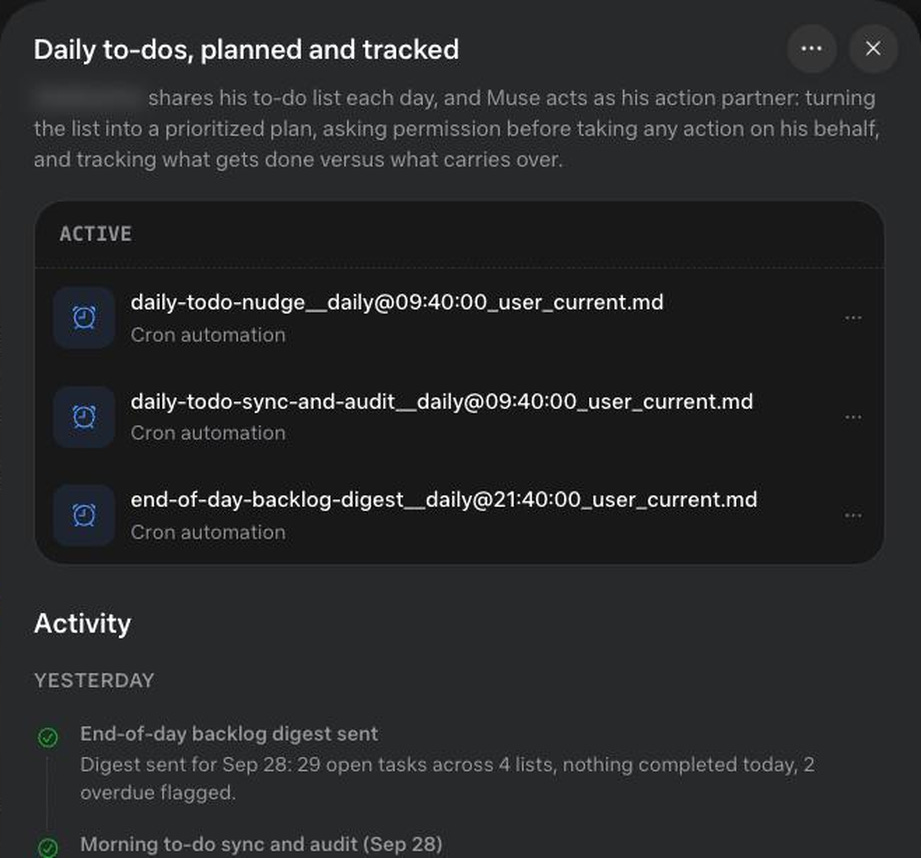
The to-do Goal with its three scheduled tasks and the Sep 28 digest: “29 open tasks across 4 lists, nothing completed today, 2 overdue flagged”
Where it breaks:
Week two: zero done. I added 20 article ideas only I could write, and by the morning audit’s count the list peaked at 36 open items. Muse tracked every one, morning and night. It just couldn’t do my half.
I ignored the nudges. The morning nudge ran 13 days in a row. I answered it once.
Check anything it puts on your calendar. Slate’s reviewer asked for an event at 10 a.m. the next day, and Muse “added the event two hours and 40 minutes in the past.”
It once asked me to paste an access token into the chat. Don’t. Use Settings → Secure store.
Check the delete permission. My Google Tasks connector had “Delete tasks and lists” on Allow. Set it to Ask.
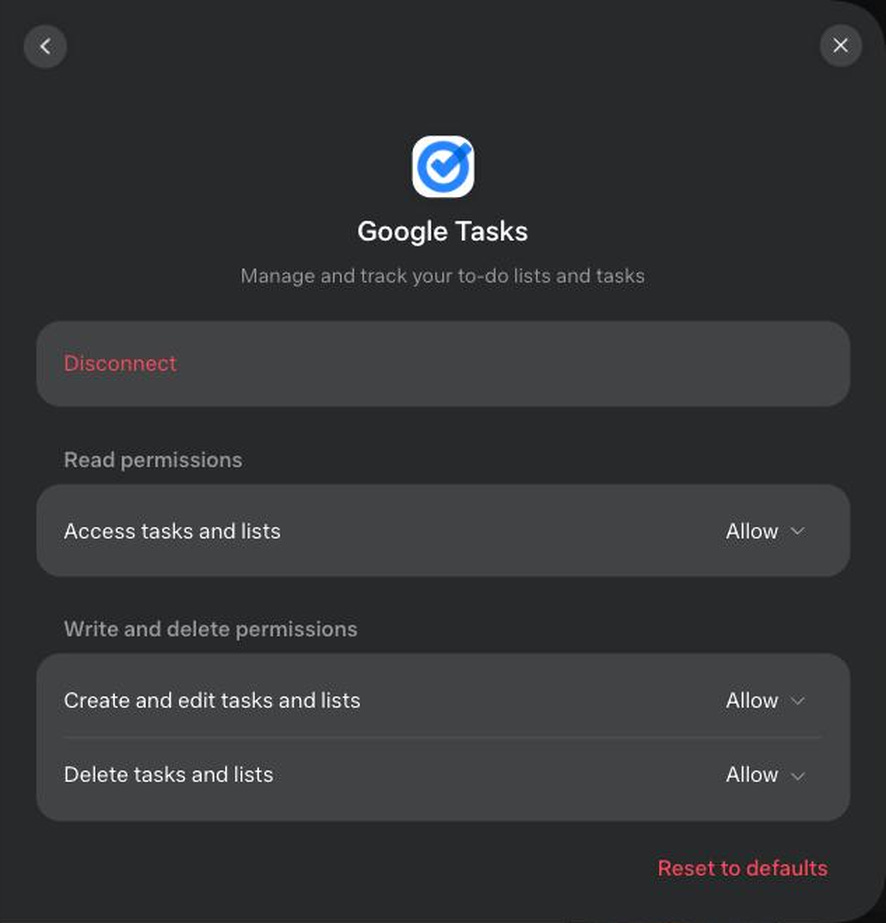
Google Tasks connector permissions: access, create and edit, and delete, all on Allow in my account
When this is useful for you: when a good part of your list is screen work: research, forms, follow-ups, chasing replies. If most of your list is things only you can do, it becomes a very polite reminder app.
To set the whole thing up, paste my setup prompt after the sort. It syncs your list with Google Tasks both ways, keeps the ideas only you can work on out of its count, and reads back calendar times before adding them. The one fix a prompt can’t make is the delete permission, so set that to Ask in the connector yourself.
The trial run and the Friday sweep are in my full Muse to-do guide.
Use case 3: Get money back you didn’t know you were losing
Obviously, the biggest benefit a lot of people are posting about online is getting money back with Muse: checking subscriptions that you don’t use, things that have been incorrectly charged to you, or refunds that have not been credited. I think this is where Muse can help you the most.
Muse spotted a Google Cloud charge of about $9.54 a month, a small database I’d created one afternoon and never used. It added up the Gmail receipts to $114.14, drafted a billing case and showed me the text before filing.
What I said, once the case was in:
“Keep an eye on what Google responds, your goal is to get me the refund.”
What happened:
2:55 p.m. Case filed.
6:56 p.m. Google said no. The database billed whether I used it or not, so the charges were valid. They also asked why I hadn’t noticed the monthly statements.
7:05 p.m. Muse explained the reply in plain words and drafted a follow-up. It owned the mix-up, answered the statements question honestly, said the database had zero usage, and asked once for a courtesy refund. I said “send it,” 9 minutes after Google’s no.
7:44 p.m. Google granted “a one-time courtesy billing adjustment” and approved the refund.
That’s 4 hours and 49 minutes from filing to approval. My part was two approvals, one password and one six-digit code.
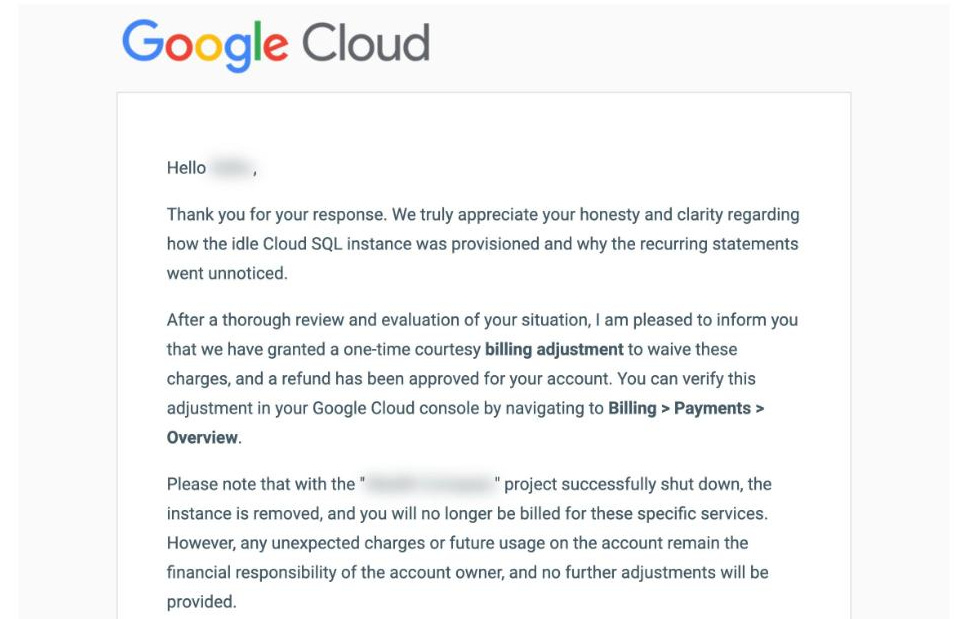
Google Cloud Support’s reply at 7:44 p.m.: “we have granted a one-time courtesy billing adjustment to waive these charges, and a refund has been approved for your account.” Name and project blurred.
Where it breaks:
It can’t get past two-factor codes on its own. My code came by text, which Muse can’t read. Its email connector filters out emailed codes on purpose, so you type them.
The first email guessed. It assumed the charge was Firebase, but it was a Cloud SQL database. Google’s explanation saved the case. Check which service is billing before it drafts anything.
Google’s own docs back them up: “If you are not using your instance, you can set its activation policy to NEVER to avoid instance charges.” An idle database keeps billing until you stop it.
When this is useful for you: for small recurring charges you’d never chase yourself, because writing the email feels like more work than the money. Then delete the thing you were paying for. Stopping it suspends the instance charges, but storage and IP addresses still bill.
To set this up, paste my refund setup prompt. It finds the leak and checks which product is billing before it drafts anything. It stops so you can type any two-factor code, checks for a reply every morning, and shows you every message before it goes out.
If they say no, my courtesy refund prompt has the structure that turned Google’s no into a yes. Change its first and fourth steps to match your case.
Use case 4: Clean up your inbox
You can also use Muse to set up and clean up your inbox. Give this one an afternoon. On three inboxes, it took an hour and 26 minutes.
What I said:
“Clean up my inbox with me. Look at my Gmail from the last 30 days and list the newsletters and promotional senders I almost never open, with how many emails each one sent me. Tell me which ones you’d unsubscribe me from and which are worth keeping. Don’t unsubscribe, archive, delete or reply to anything yet. Just show me the list here.”
The last two sentences matter most. With them, the worst case is a bad list. Without them, the worst case is a missing email you needed.
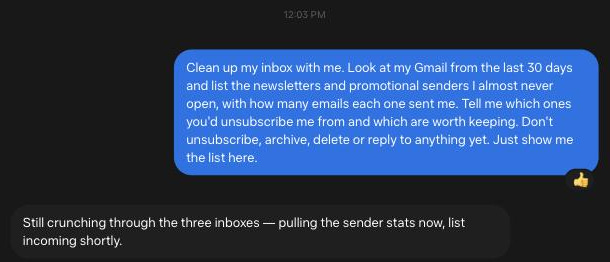
The inbox prompt in Muse, sent at 12:03 PM, and its first reply: “Still crunching through the three inboxes”
What happened: The size was the first surprise: 6,835 emails in 30 days across my three inboxes. By its count, 4,100 of them (60%) were promotions and newsletters I never open.
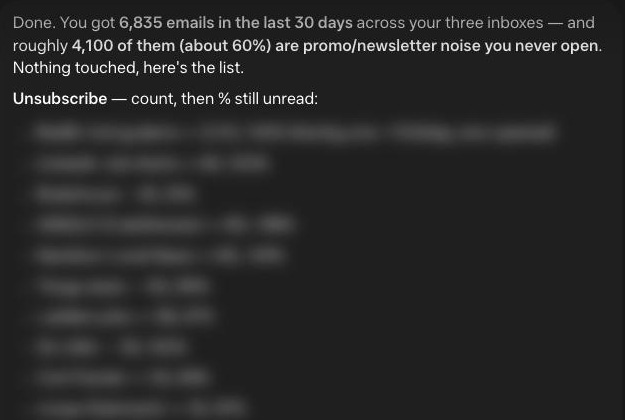
Muse’s answer: 6,835 emails in the last 30 days, about 4,100 of them promo or newsletter noise, with the unsubscribe list blurred
35 senders to unsubscribe from, each with how many emails it sent and what share I’d left unread.
One sender alone sent 3,112, about 100 a day, and I hadn’t opened a single one.
It pushed back on two of its own picks. For the biggest sender, it suggested a weekly digest instead of unsubscribing. It also warned that one app on the list might mix account notices in with its promotions.
A keep list with reasons: payment and shipping notices, plus one platform’s notifications I open about 40% of the time. For those, it said to trim individual subscriptions instead.
A “your call” pile of four senders, each with a reason to keep or drop it.
It touched nothing. It ended with “Say the word and I’ll run the unsubscribes,” plus a suggested reply button: “Yes, unsubscribe all of these.” I didn’t press it.
Where it breaks:
Big inboxes are slow, and you see nothing until the end. Ask for partial results and you get “nothing partial to show yet,” and its progress message guessed 1,100 emails when there were 6,835. Start with 7 days, or one inbox, if you want an answer before lunch.
The open page never updated. The list landed at 1:29 p.m., and I only saw it when I reloaded after 4. If it looks stuck, reload, or check the phone app.
One tap away from unsubscribing the whole list. Read it first, starting with the picks it flagged itself.
It drafts replies with facts it doesn’t have. Read every draft to a stranger before you say yes. A YouTube reviewer told NPR that Muse accepted a Marketplace offer below his minimum and sent the buyer to his address without telling him. He had allowed it to share his address, but expected it to check with him first.
It can’t see what the connector hides. Per Meta’s safety post, Muse’s email connector “filters out one-time tokens, password reset links, and login magic links.” So if Muse says a code never arrived, check your inbox yourself.
Ask for a file if you want to keep it. My prompt said “show me the list here.” Next time I’d add “save it as a spreadsheet,” or the answer scrolls away in the chat.
When this is useful for you: if your inbox has more senders than you can name and you want to know where the volume comes from. New York Magazine’s John Herrman tried inbox triage too, and told NPR it did “a pretty good job at pulling together important-seeming things.” Keep Unsubscribe and Trash on Ask, and go through the list yourself the first time.
To set this up, paste my inbox cleanup prompt. It starts with one inbox and 7 days, saves the list as a spreadsheet, keeps payment and shipping senders, and unsubscribes only in batches of 10 you’ve seen first. It drafts replies but never sends them.
Once your inbox is clean, my 7 a.m. plan prompt turns it into one morning message. Three more inbox jobs, including a tracker for promises you made in email, are in my Muse use cases list.
Use case 5: Apply to jobs with a resume skill (the one to hand over last)
Step 1: Get the skill. It’s in my AI Resume Builder 101. It tailors a resume to one job description, and every bullet has to trace back to your own experience file.
Step 2: Give it to Muse. Muse has no documented skill installer, so paste SKILL.md and each reference file into a new chat. Fill the skill’s experience library first, or every resume comes out as placeholders.
What to say with the files:
“I’m giving you my resume skill: a SKILL.md file and its reference files. If you can’t open them, tell me and I’ll paste the text. Add these instructions to AGENTS.md under a heading called Resume skill.”
The full prompt also has Muse fill the experience library and tailor one test resume before anything else.
Step 3: Give it the job. The setup opens like this:
“Your new job: apply for my jobs. Only come to me when you hit a snag.”
Its last rule is the one that matters most: “Never invent a title, date, employer, number or skill.” The rest of the setup prompt has it tailor every resume with your skill, apply only on each company’s own careers page, and stay off LinkedIn and Indeed.
What it does: It reads the skill before every resume, tailors one per role, and writes a short note on what changed and why. It retries forms that glitch. Tell it to check what it already sent before every retry, so a crash never turns into a duplicate application.
Where it breaks: Expect it to hand back six kinds of things:
CAPTCHAs. You take over the browser.
Six-box verification codes it can’t type.
Passwords, which it only uses through an approval card.
Verification emails that never seem to arrive.
Salary questions.
Essays and “in your own words” answers.
That last one needs a warning. It may write an “in your own words” answer anyway if you don’t stop it. Write those yourself.
Also keep it off LinkedIn and Indeed. LinkedIn’s user agreement bans using “bots or other unauthorized automated methods to access the Services.” Indeed’s terms say “any automation, scripting, or bots to automate the Indeed Apply process” outside its official tools “is prohibited.”
When this is useful for you: if you’re applying to a lot of roles on company sites and the time goes into retyping the same details.
Test it on one or two applications first, with Muse stopping before it submits. That test and the full daily setup are in my Muse job-applications guide.
The rules I’d set on day one
After a month, these are the six I’d give a friend before they start. Meta’s own safety post is blunt about why: “Prompt injection remains an open problem in the industry — and Muse will sometimes make mistakes.”
Personal accounts only. Never connect your employer’s email or calendar.
Draft on Allow, Send on Ask. Same for trash, unsubscribe and delete.
One side chat per job. It keeps the context clean, and you can find things later.
Name the file it should keep. Then open it on day 2 to check it’s filling up.
Expect hand-backs. Two-factor codes, CAPTCHAs and passwords stay with you. That’s by design.
Turn things off on purpose. Muse won’t wind down an open-ended job by itself. Say “stop the food log tasks,” then check the Upcoming tab.
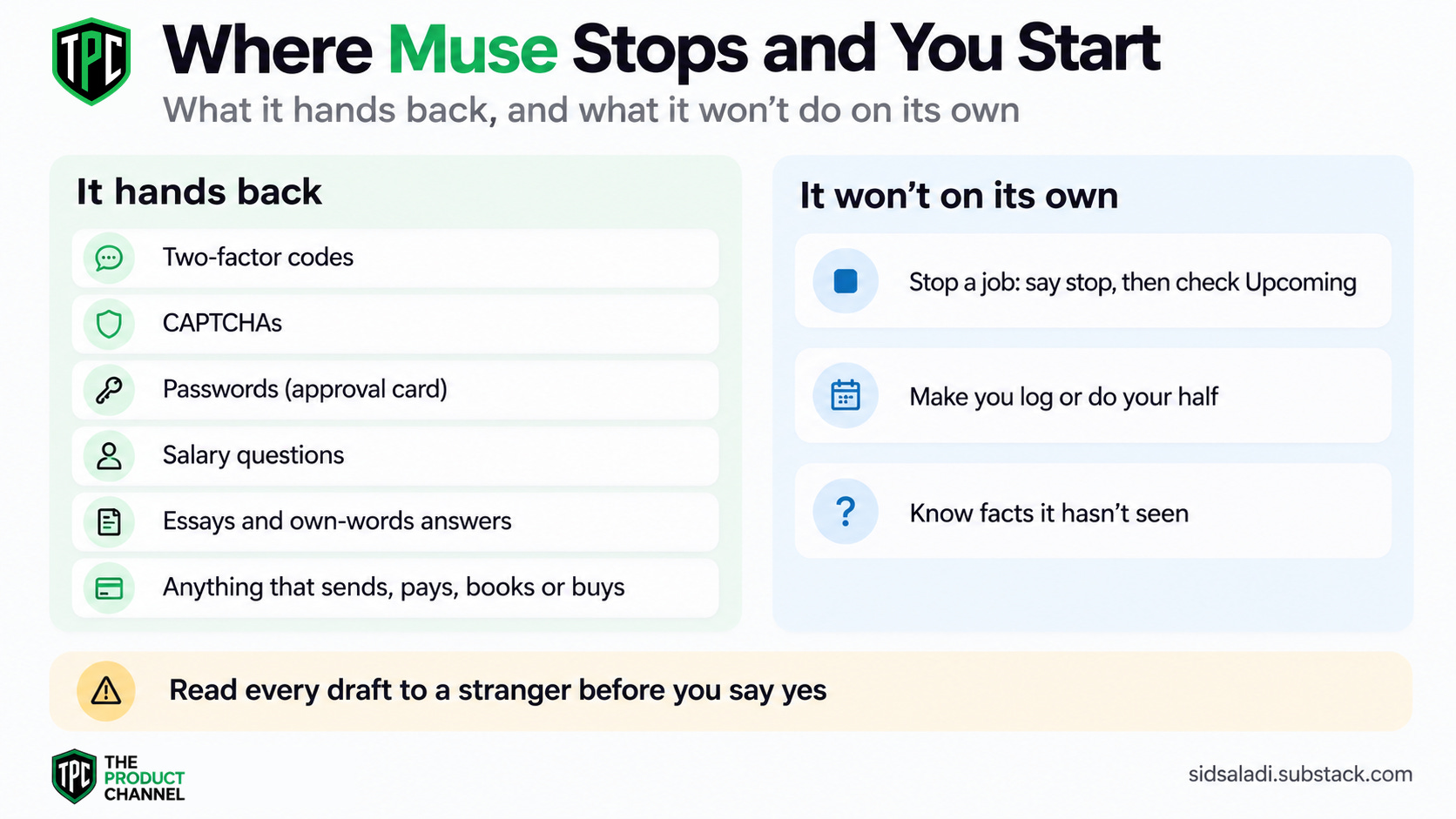
Where Muse stops and you start: what it hands back, and what it won’t do on its own. Made with ChatGPT
What Muse remembers about you lives in plain-text files you can open. Tap the Assistant icon, then Identity, to find Memory and Soul.
Meta’s help page says: “You can edit and delete information in the Memory.md file directly.” If it keeps doing something you don’t like, read why and change it.
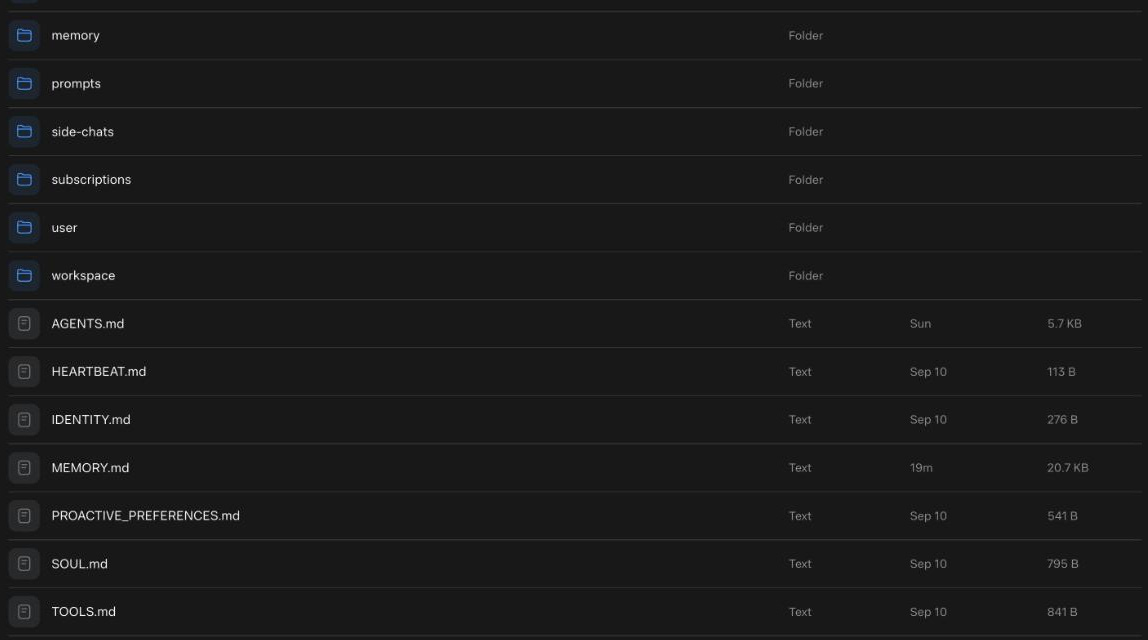
Muse’s System files: the plain-text files it reads and edits, including AGENTS.md, MEMORY.md and SOUL.md
Your turn
Start with the job where a mistake costs the least. For most people that’s a food log or one forgotten subscription. Give it a week, then decide what to hand over next.
What’s the one job you’d never hand to an agent?
Every week at The Product Channel, I take one more job off my plate with AI, and show you the setup. Subscribe to get the next one.
About the author
Sid Saladi writes The Product Channel, a newsletter that helps people get their day-to-day done faster with AI, at work and at home. He publishes AI tool 101s, each one tested on his own work, with the prompts to copy. Subscribe for the next one.
Sid’s best pieces:
Meta Muse 101: The Complete Guide to Meta’s Personal AI Agent (+ 13 Things to Say to It)
Cal AI Alternative: Turn Meta Muse Into Your Calorie Tracker With One Prompt
Make Meta Muse Apply for Your Jobs: 12 Applications in One Day, and It Only Came to Me on a Snag
AI Resume Builder 101: A Claude Skill That Customizes Your Resume for Every Job in 60 Seconds

Meta $20 Billion debt issuance https://www.reuters.com/business/meta-eyes-least-20-billion-potential-bond-offerings-bloomberg-news-reports-2026-11-02/
Metrics around the retention rates of Muse in some angles look bullish and in other angles look bearish.
It will take some time to see if their efforts are viable.
What do you think about their Gamble on these kinds of products?