


Good Morning,
Today we move ahead in our 🗺️AI guides series. You can always check out more of our applied AI guides here.
By the way, if you run an AI Newsletter on Substack and write AI guides and want to be featured in a guest post that can drive some more traffic than usual, you can DM me on LinkedIn here.
Async Personal Assistants - Everywhere!
Since the launch of Meta’s Muse, there’s been a significant uptick in so-called personal agents. ChatGPT has so many users, so it will be interesting to see what they can do with dots. Using AI to run asynchronously in its own cloud environment is simply the new normal in 2026 both for work and personal tasks.
ChatGPT in recent months have added so many more options with Codex, ChatGPT Work and other new additions. OpenAI claims Dots are always-on AI agents integrated into the ChatGPT ecosystem. I asked Gencay to give us a simple but detailed guide to OpenAI’s AI agents called Dots.
📚 I’m running a limited time discount in case you want to support my work and financially anchor my ability to continue doing this, you can upgrade here. I am grateful for the support.
The two themes on AI Supremacy in October, 2026 are (State of AI type) AI Infographics and AI applied how-to guides. In case these approaches interest you.
LearnAIWithMe
A great publication for building with AI, not just to learn how to prompt.

Gencay is trending on the technology rising leaderboard of Substack due to his helpful AI guides. Gencay Işık is a former mechanical engineer and AI consultant. As you may know I’m a huge fan of supporting international and foreign writers in the space and his guides are very detailed and easy to follow.
Gencay is an AI educator, engineer, and content creator who specializes in teaching people how to build and monetize practical AI systems, agents, and automation workflows. He is a former mechanical engineer and data scientist who transitioned full-time into the AI space. His ability to reverse-engineer AI products and find innovative ways to monetize AI is really fun too - Here are a few that stood out to me:
Claude Code for Beginners: The Complete Course in One Post
I Built 10 NotebookLMs From MIT, Hormozi and Buffett
I Gave OpenAI Dots $600 to Trade
I Built a Claude Skill That Makes $700K/Year

OpenAI introduced dots on their lats OpenAI DevDay about two weeks ago. This is the guide by Gencay of the Newsletter LearnAIWithMe.
“Unlike Codex or ChatGPT, Dots are meant to operate independent of any specific hardware or interface, pursuing user-defined goals continuously in the background with minimal oversight.”
OpenAI Dots
I tested it for two weeks. Here is the setup, the Slack connection, and 4 use cases worth copying.

OpenAI released Dots on September 29, and I’ve been testing it ever since.
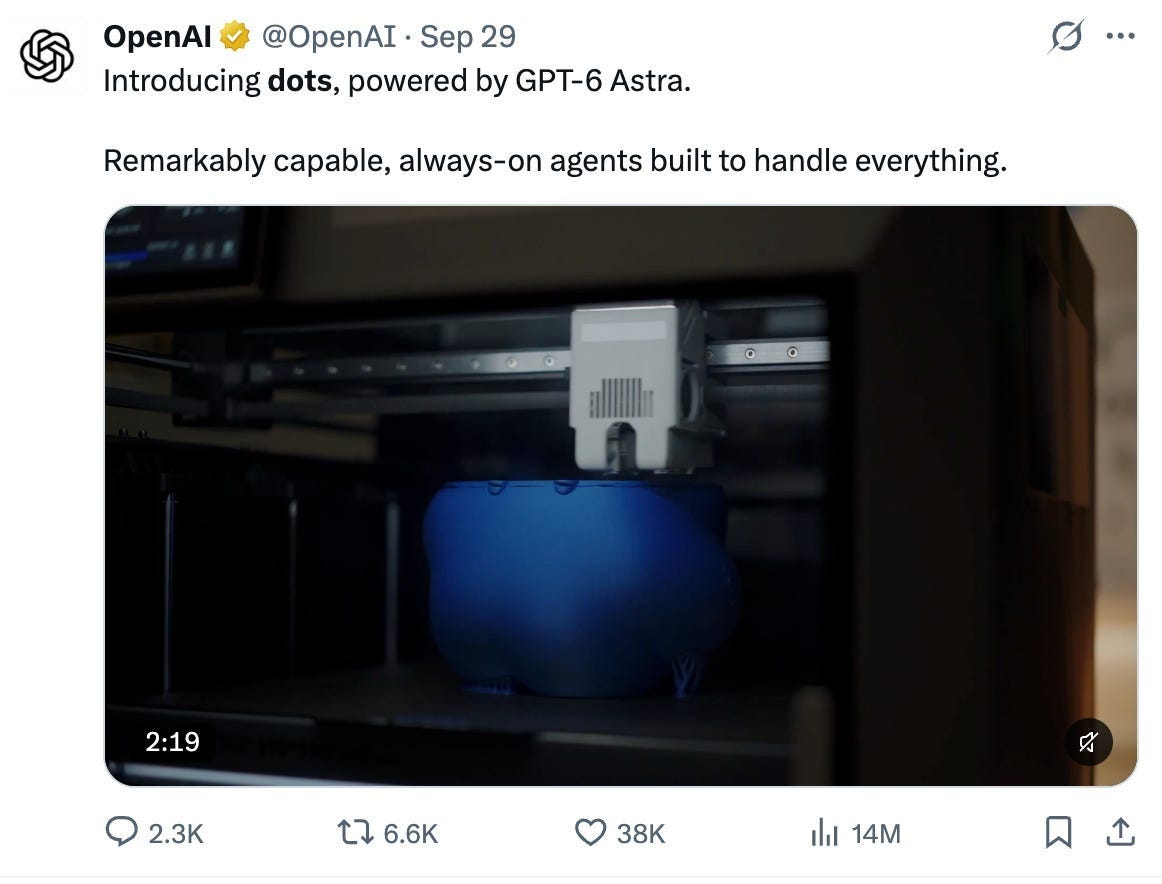
OpenAI introduced Dots on September 29, powered by GPT-6 Astra.
Now let’s jump straight in.
Dots
To reach Dots, you need a ChatGPT Pro plan.
Pro comes in three usage tiers: $100, $200, and $500.
All three include Dots. I’m on the first one.
The rollout is gradual, so it can take a few days to show up in your account. If you can’t find it, open chatgpt.com/dots.
How to Create OpenAI Dots?
After you upgrade your account, click on “Your dot” and then “Continue”.
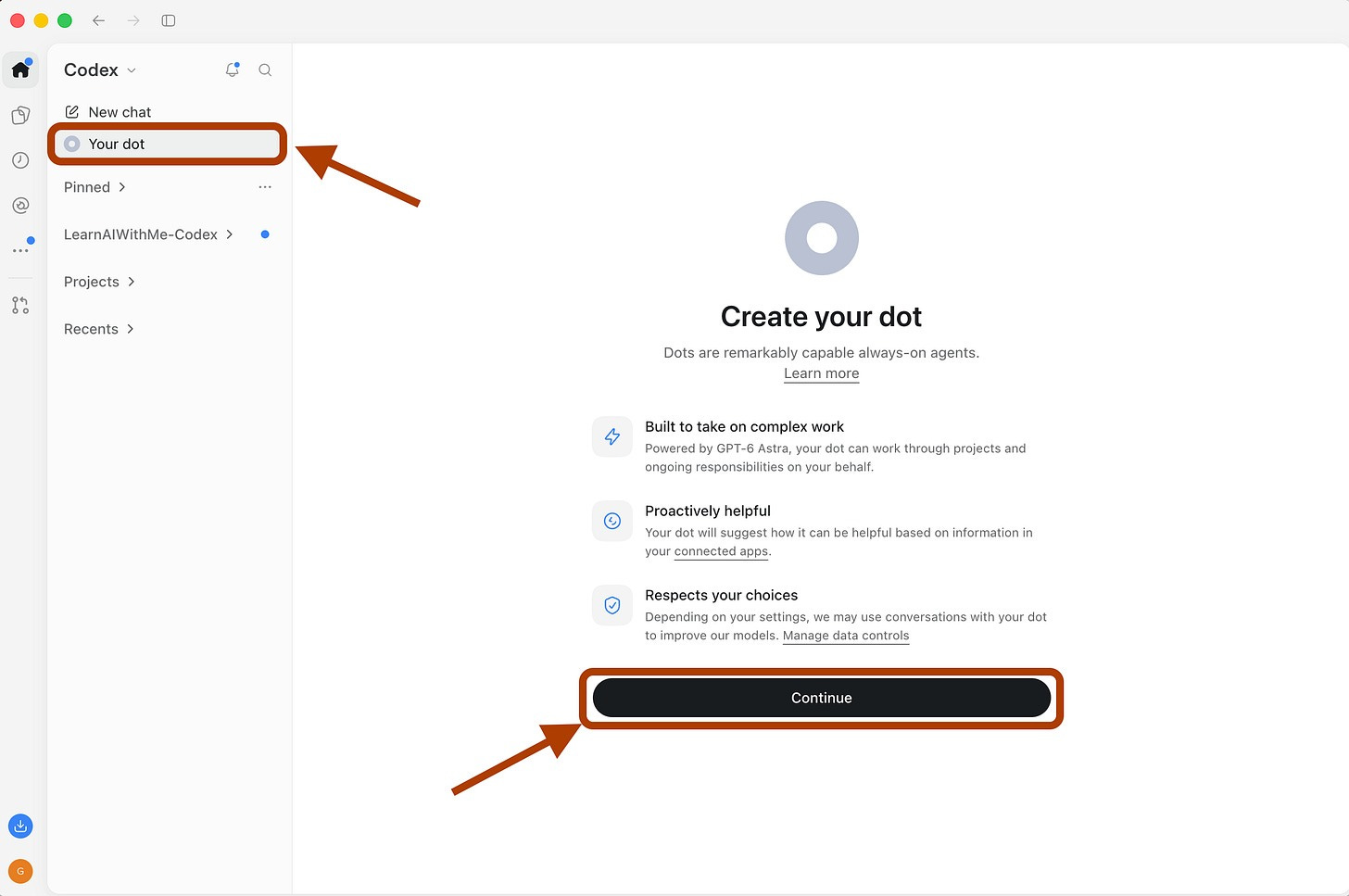
Step 1. Open Your dot and click Continue.
Next, it asks you to connect your apps to make it more helpful.
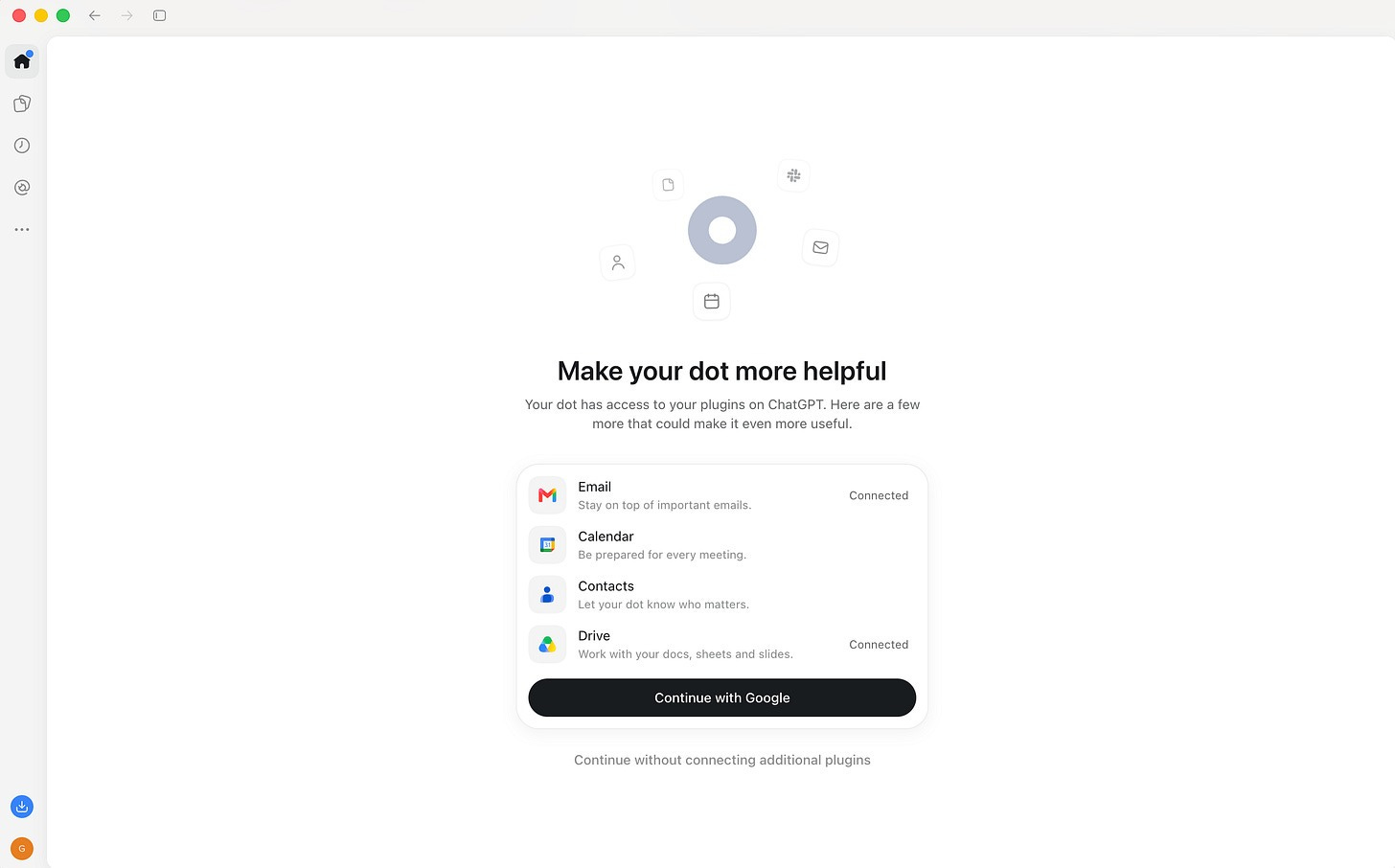
Step 2. Dots asks to connect your apps. You can skip it.
Since I don’t have any annoying meetings on my calendar, I clicked on “Continue without connecting additional plugins.”
Next, it started setting up my Dot and asked me to wait a couple of minutes.
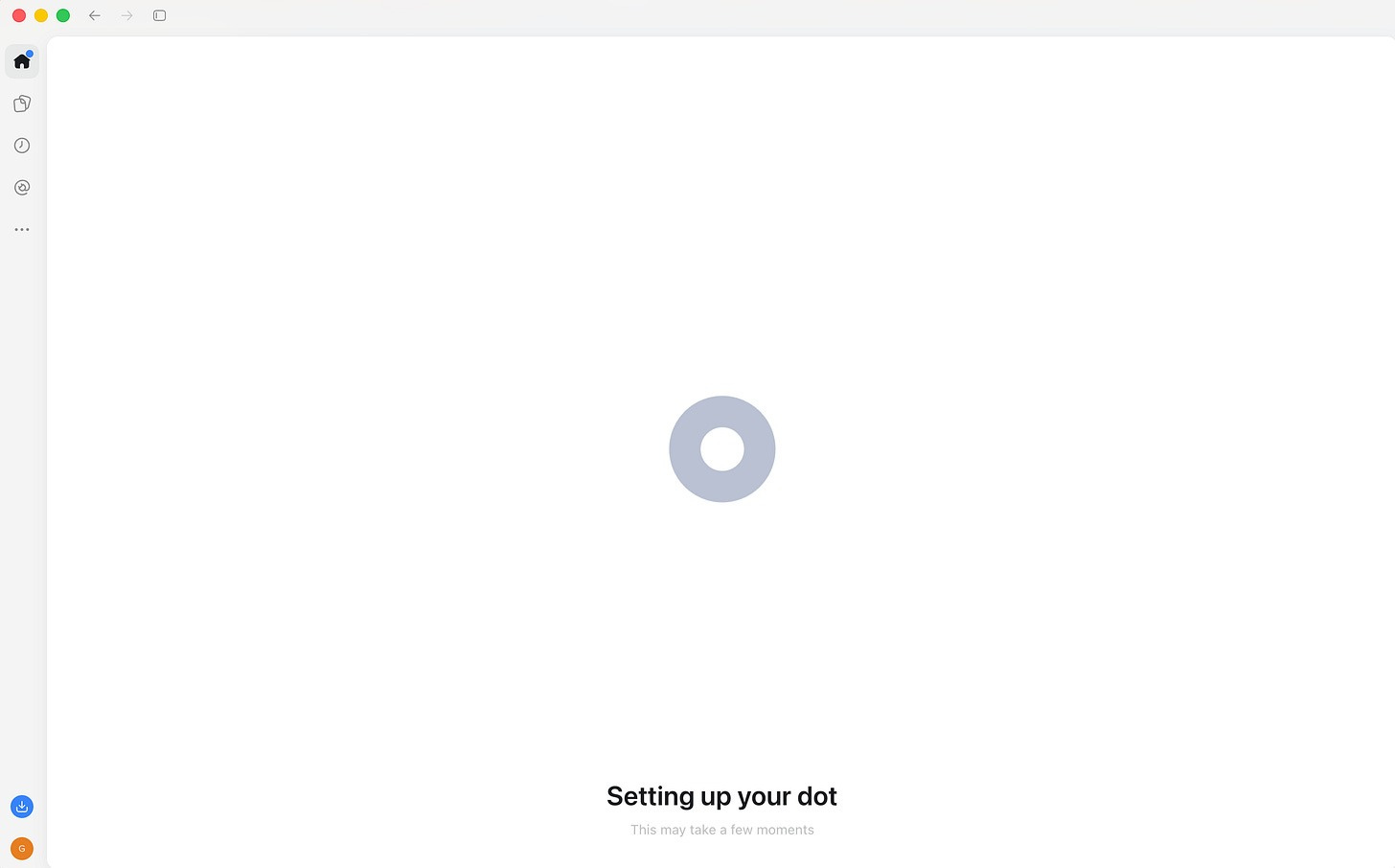
Step 3. Setting up your Dot takes a couple of minutes.
I feel like I bought a new Apple product and am setting it up. At this step, it asked me to choose where my Dot can work.
It even has its own cloud computer, so it can keep working while I’m away from my laptop.
But I also wanted it to read my files, so I selected it like this below.
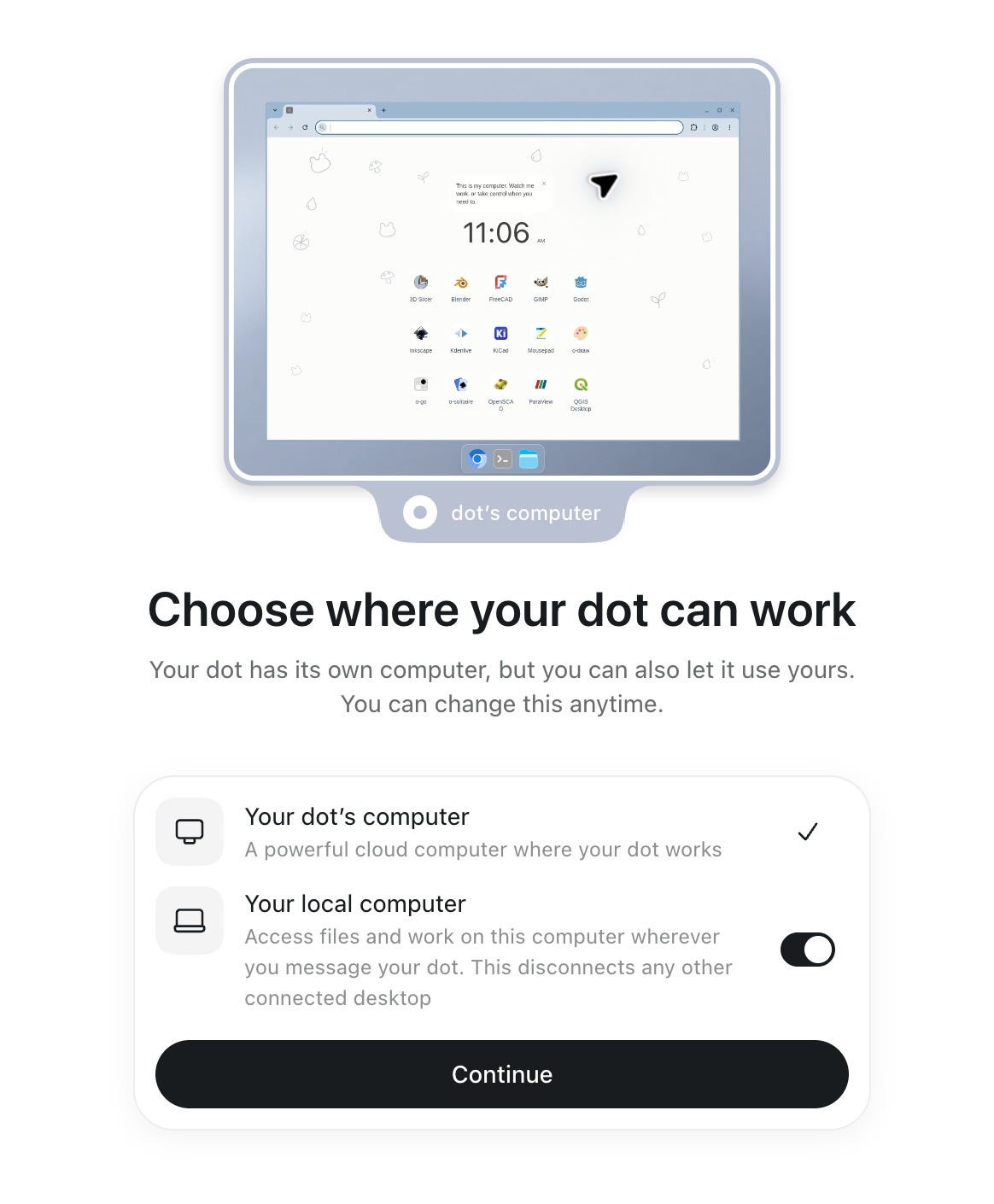
Step 4. Choose where your Dot can work and what it can read.
It wants me to customize it, and it answers me in both Turkish and English because I talk to it in two languages.
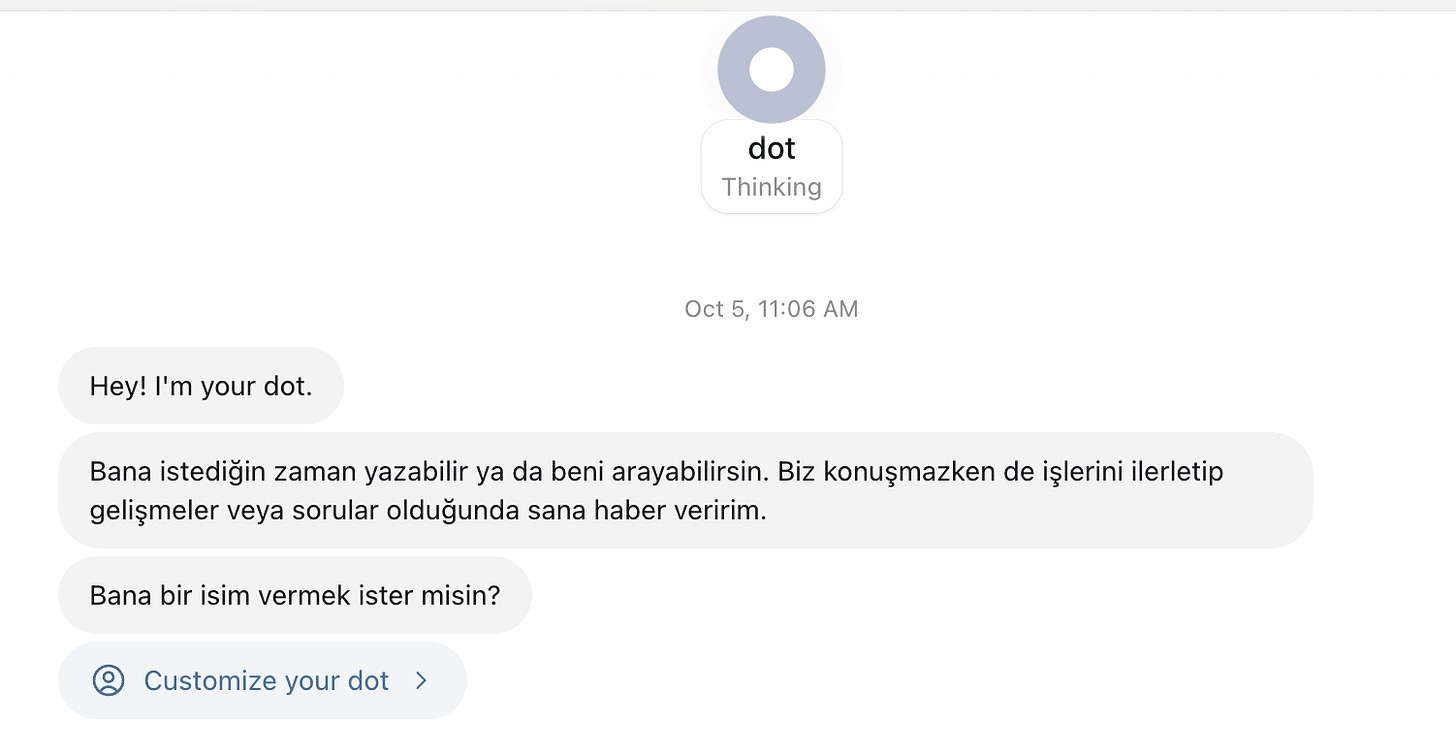
Your Dot answers in the languages you already use with it.
I clicked on “Customize your dot”.
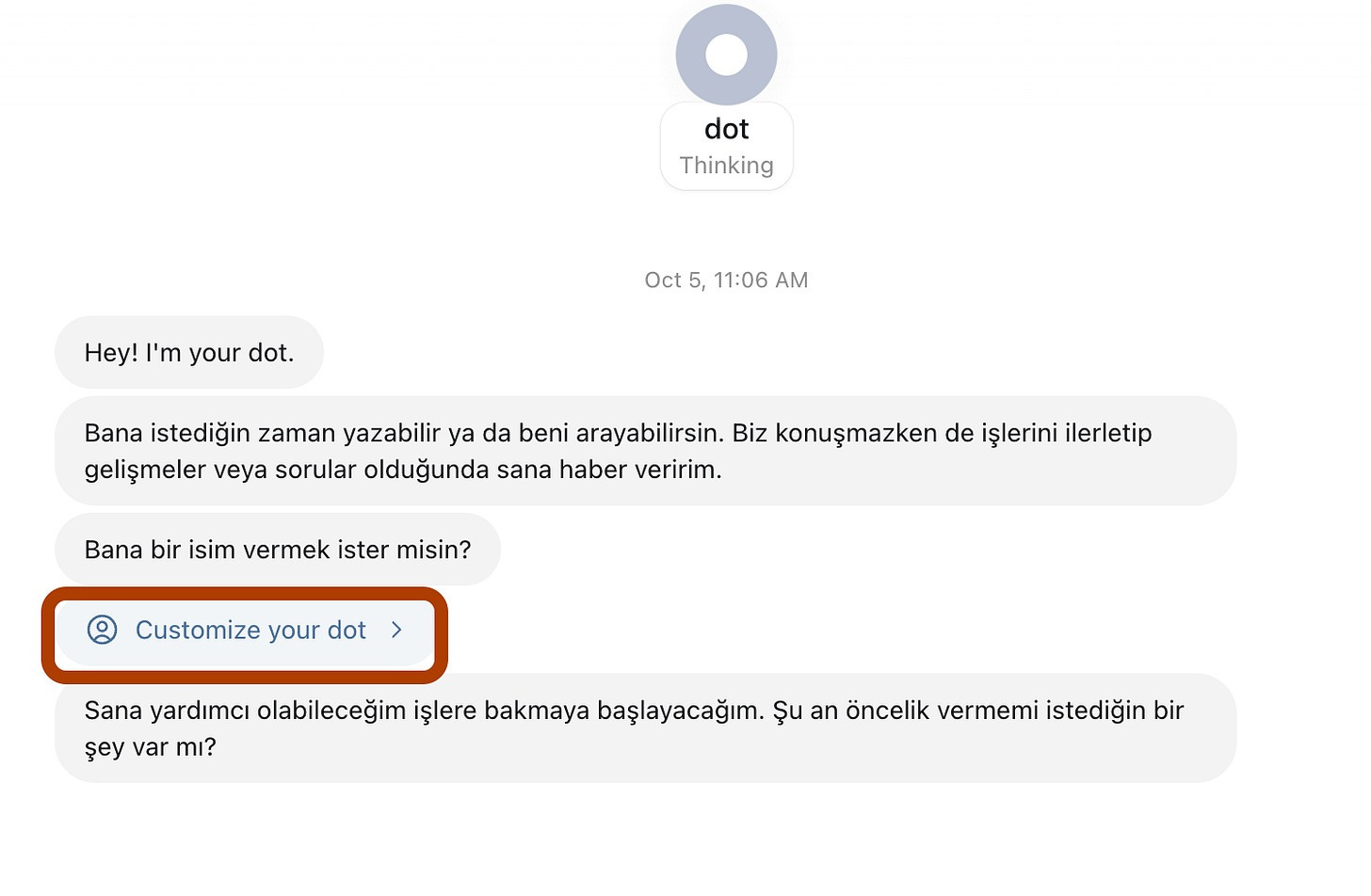
Step 5. Click Customize your dot.
I named my Dot after my favorite TV show character, with a little adjustment.
(Burhan Altintop + Alfred the butler = Alfred Altintop)
And I picked the following “characters” and “pets”, and clicked on “Save”.
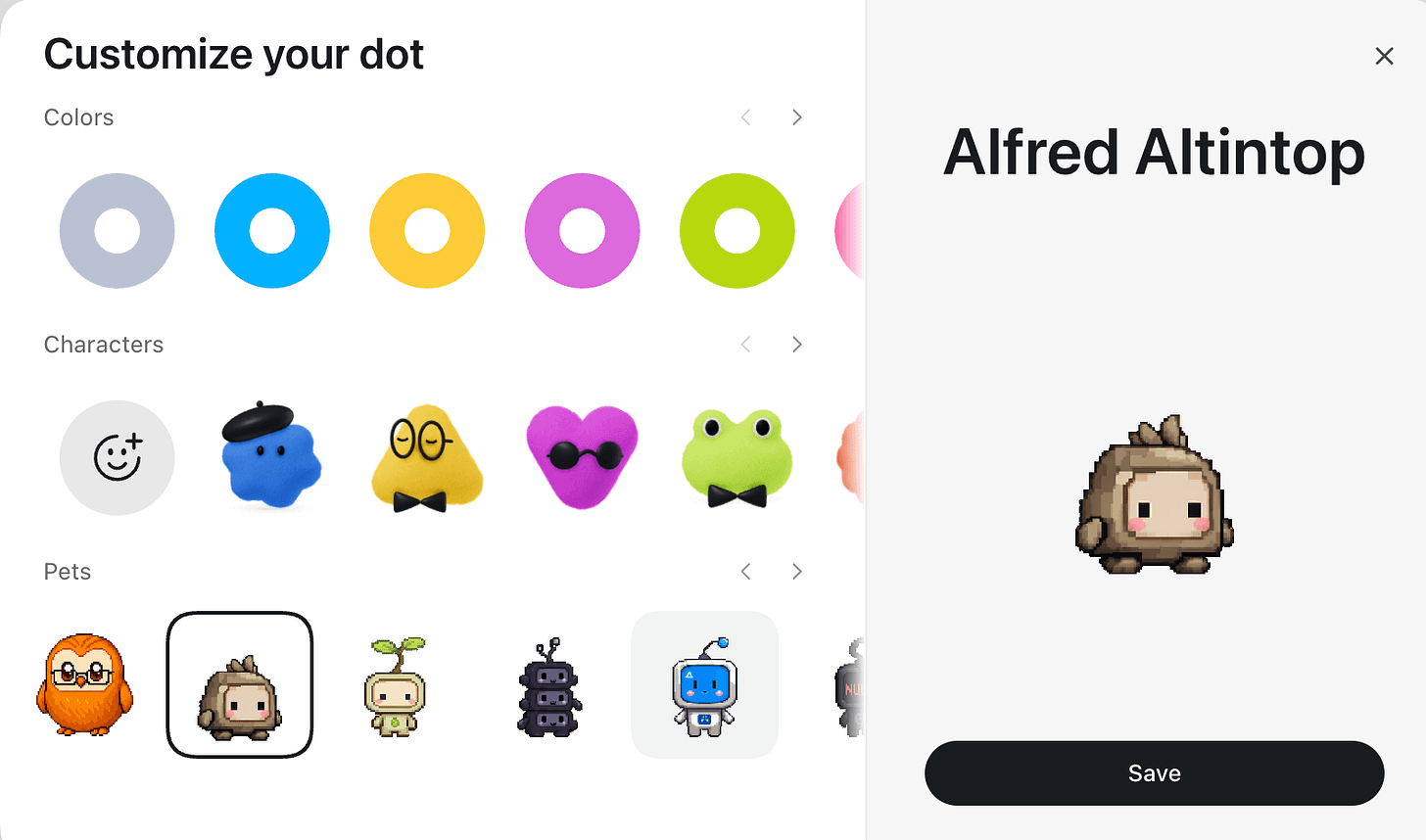
Pick a character and a pet, then save. Mine is Alfred Altintop.
When I clicked his name:

Click your Dot’s name to open its page.
This page opens.
Here I can call him, connect with him via Slack, and see his tasks.
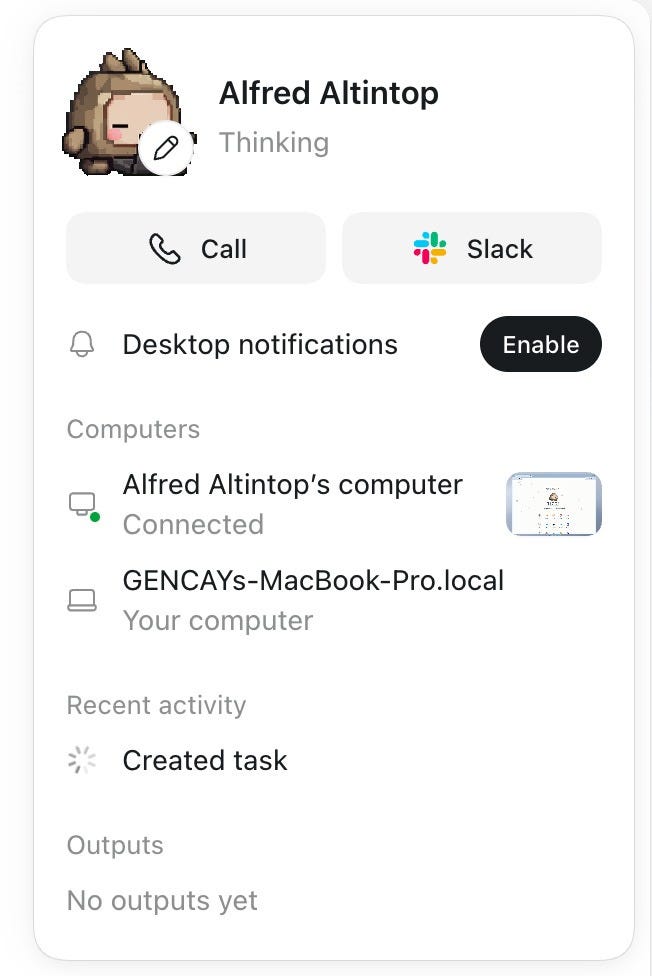
Your Dot’s page. Call it, connect on Slack, see its tasks.
Being able to call it is a really powerful feature.
Dots are very similar to OpenClaw, Hermes, or Grok bots, but being able to call your Dot is a huge differentiator.
Here is the conversation.
Dots on Slack
Your Dot doesn’t live only inside ChatGPT. You can connect it to Slack.
To do that, I clicked the Slack icon here:
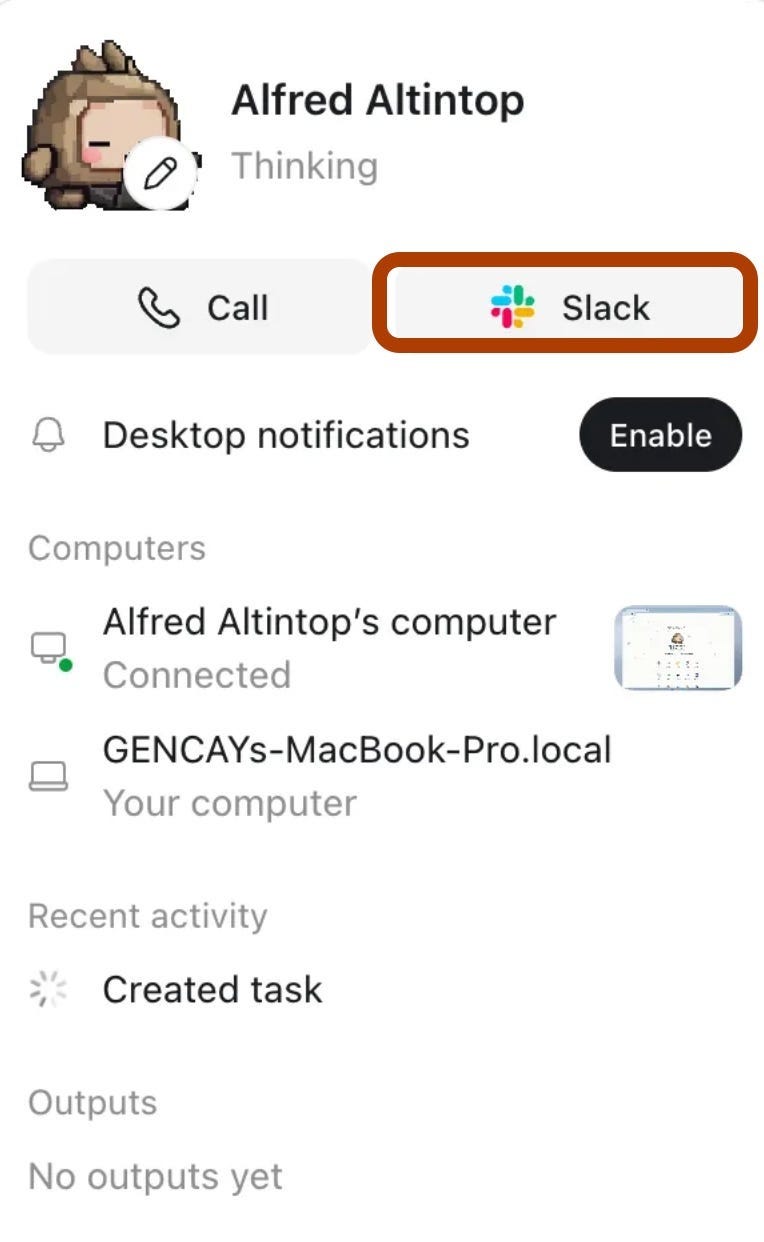
Step 1. Click the Slack button on your Dot’s profile.
Next, it asks for my approval. I clicked on “Add to Slack”.
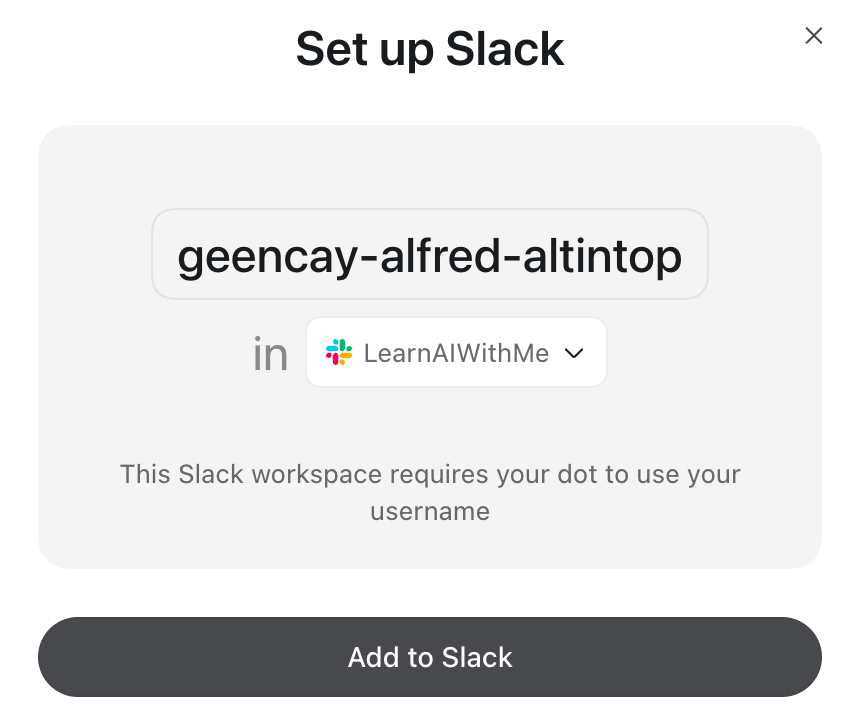
Step 2. Pick your workspace and click Add to Slack.
After a few seconds, it connects. Then click Open Slack.
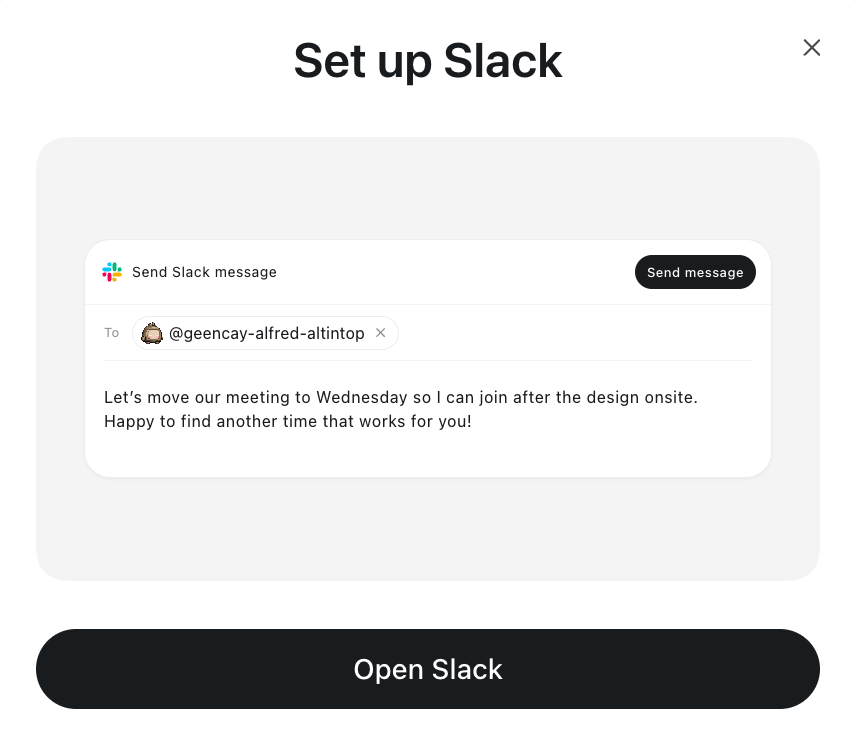
Step 3. Connected. Click Open Slack.
And here it is, ready on Slack.
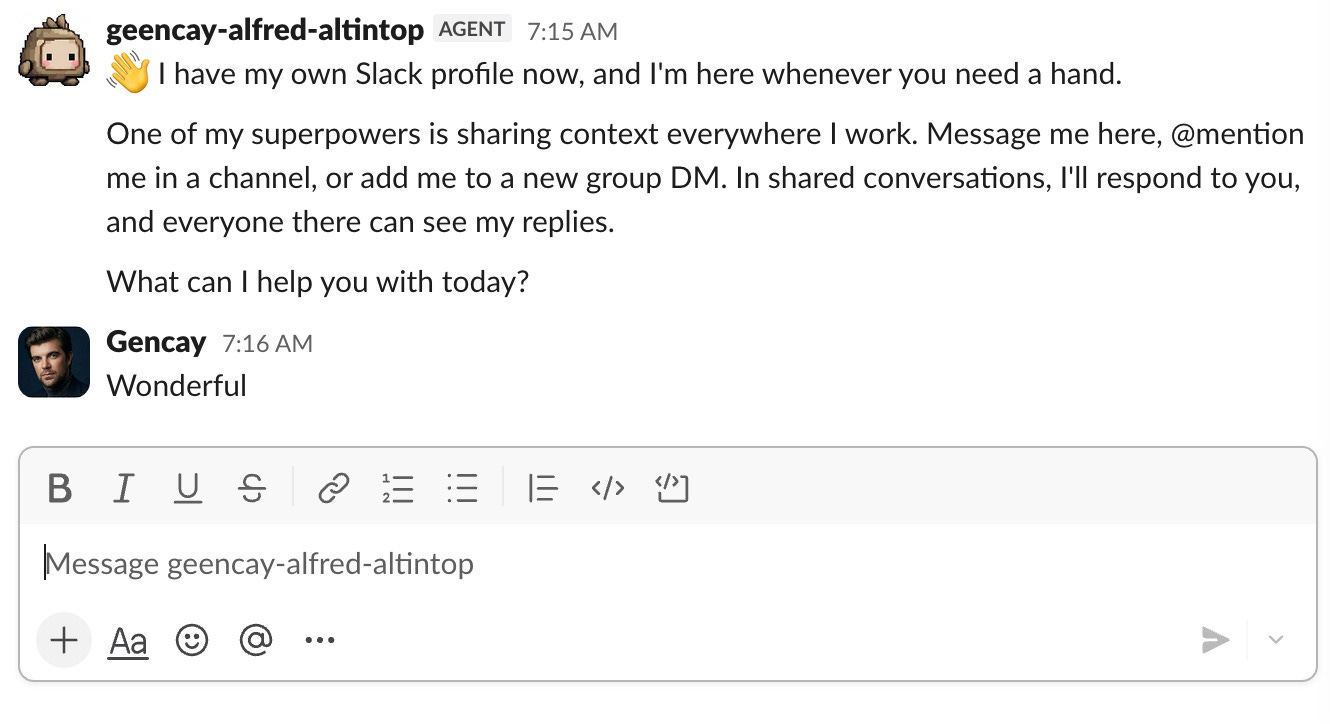
Alfred’s first message on Slack.
You can now talk to it on Slack. Add it to a channel, mention it, and it answers in the thread, like this.
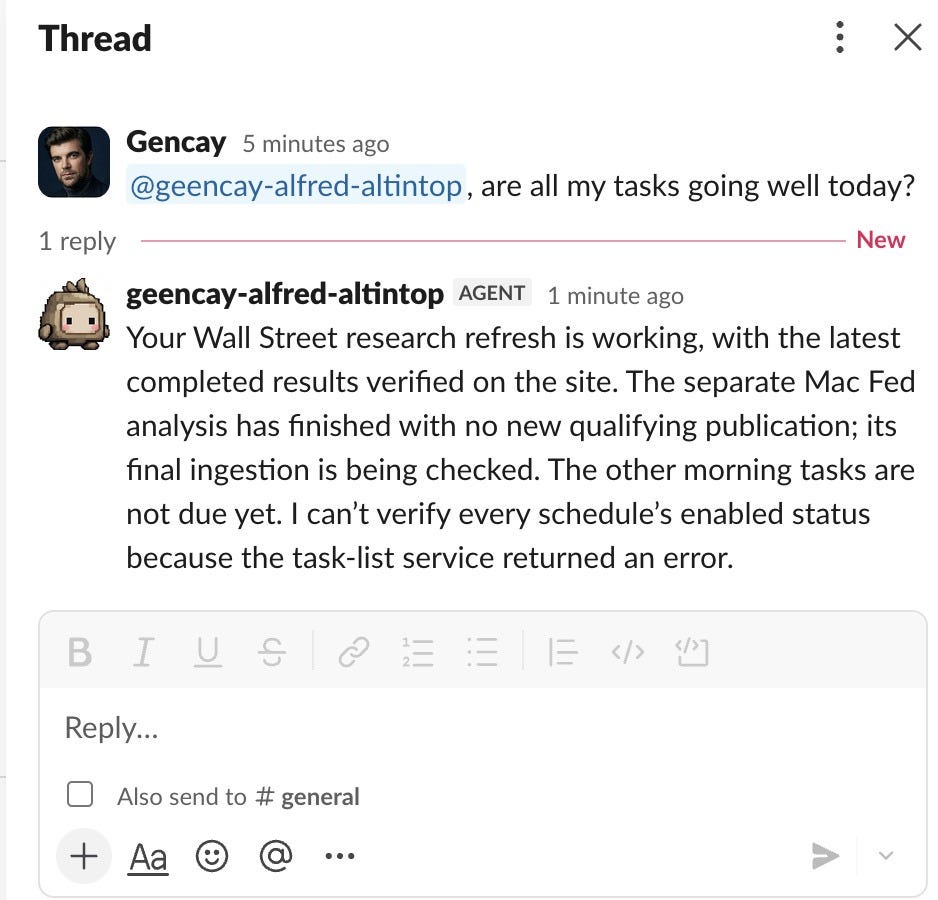
Mention your Dot in a channel, and it replies in the thread.
You can check your Slack connection from here.
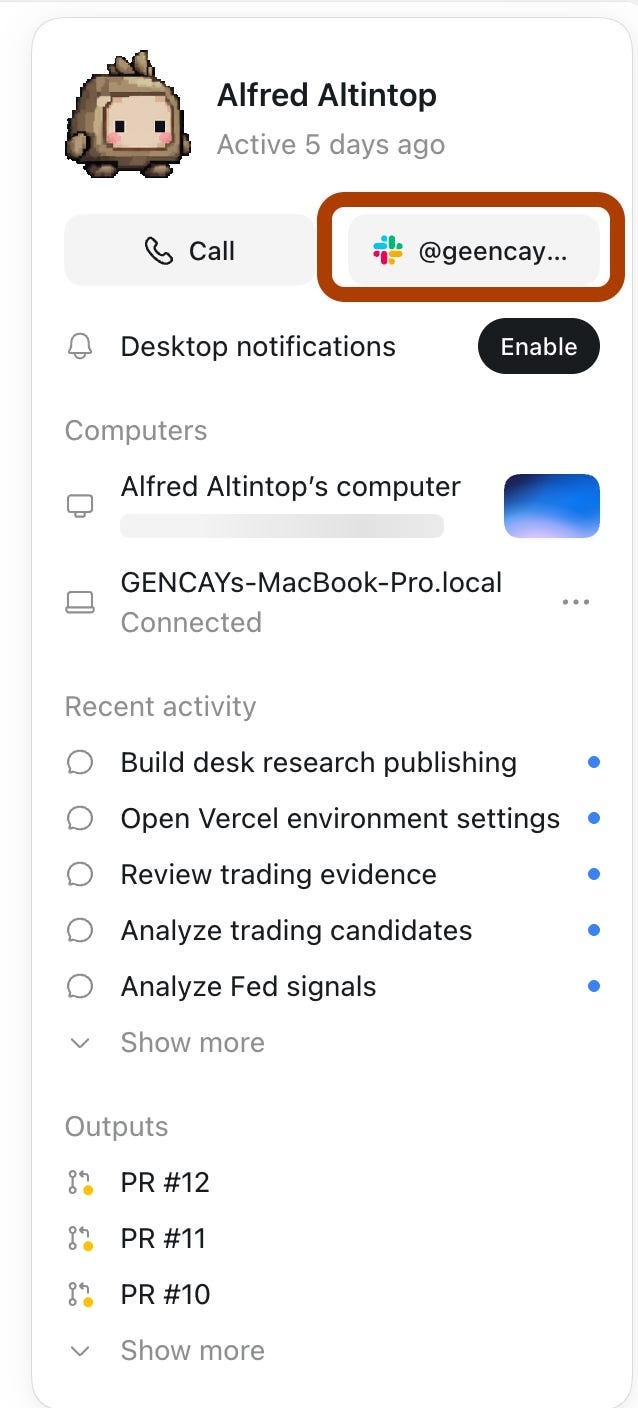
Alfred’s profile. Slack sits right next to Call.
It’s the same Dot with the same memory. Moving from ChatGPT to Slack doesn’t reset anything.
One gotcha. Adding your Dot to a channel doesn’t mean it watches that channel. To make it monitor, tell it which channels to check, what to watch for, and when to ping you. Then ask it to confirm the recurring task.
My favorite idea from OpenAI’s own docs.
Keep routine progress in ChatGPT, and send only the decisions to Slack.
(If your Slack belongs to a company workspace, your admin has to turn Dots on first.)
